

How to Create a QR Code for a Website
A QR code turns your website into something a phone can open without any typing. Someone sees it on your business card, your shop window, a flyer, a product label, or anywhere else you have placed it. They point their phone camera at it. Their phone opens your website. That is the entire interaction.
For a small business, a QR code on printed materials can meaningfully increase the number of people who actually visit the website rather than just seeing the address and deciding typing it out is too much effort. For individuals, they provide an elegant way to share links without requiring anyone to remember or write anything down.
This guide walks through the complete process: choosing the right tool, generating the code, getting the settings right, downloading in the correct format, and making sure everything works before you print or publish it.
Before You Generate Anything
Two things are worth sorting out before you open a generator.
The first is the URL itself. Make sure you know the exact address you want the code to point to, including the full https:// at the beginning. Test it in a browser and confirm it loads correctly. A QR code pointing to a broken or incorrect URL is worse than no QR code at all.
The second is whether a shorter URL would serve you better. Longer URLs produce denser, more complex QR codes with more data packed into the same area. Denser codes are harder to scan reliably, especially when printed small or viewed in poor lighting. If your URL is long, consider whether you can link to a shorter version. A clean homepage URL like https://yourwebsite.com is much easier to encode cleanly than a lengthy tracking URL with multiple parameters attached.
If your destination URL is unavoidably long, use a URL shortener to create a brief redirect before generating your QR code. This has a secondary benefit: if you ever change the destination page, you can update the redirect without generating a new QR code.
Choosing Between a Static and Dynamic QR Code
Every generator will eventually try to offer you a choice between static and dynamic codes. Understanding this distinction will save you from making a decision that costs you later.
A static QR code permanently encodes your URL at the time of creation. The data is literally embedded in the pattern of squares. No third-party service is involved once the code is created. It will work indefinitely as long as the destination URL remains live, regardless of what happens to any company or tool.
A dynamic QR code contains a short redirect URL controlled by the service that created it. When someone scans the code, they are sent through that service’s redirect system to wherever you have set the destination. You can change the destination later without reprinting the code. The service also tracks how many times the code was scanned.
The argument for dynamic codes is flexibility and data. The argument against them is dependency. If the service changes its free plan, introduces a paywall, or shuts down, every dynamic code you created stops working. For anything permanent, static codes are the more reliable choice.
For most everyday uses, a static code from a free generator is the right answer. Use a dynamic code only when the ability to change the destination or track scans is a genuine requirement rather than a nice-to-have.
Step-by-Step: Creating the QR Code
Step 1: Open Your Chosen Generator
For a straightforward URL QR code with no customization, Shopify’s free generator at shopify.com/tools/qr-code-generator is the fastest option. Open the page, paste your URL, click Generate, and download. No account needed. The process takes about twenty seconds.
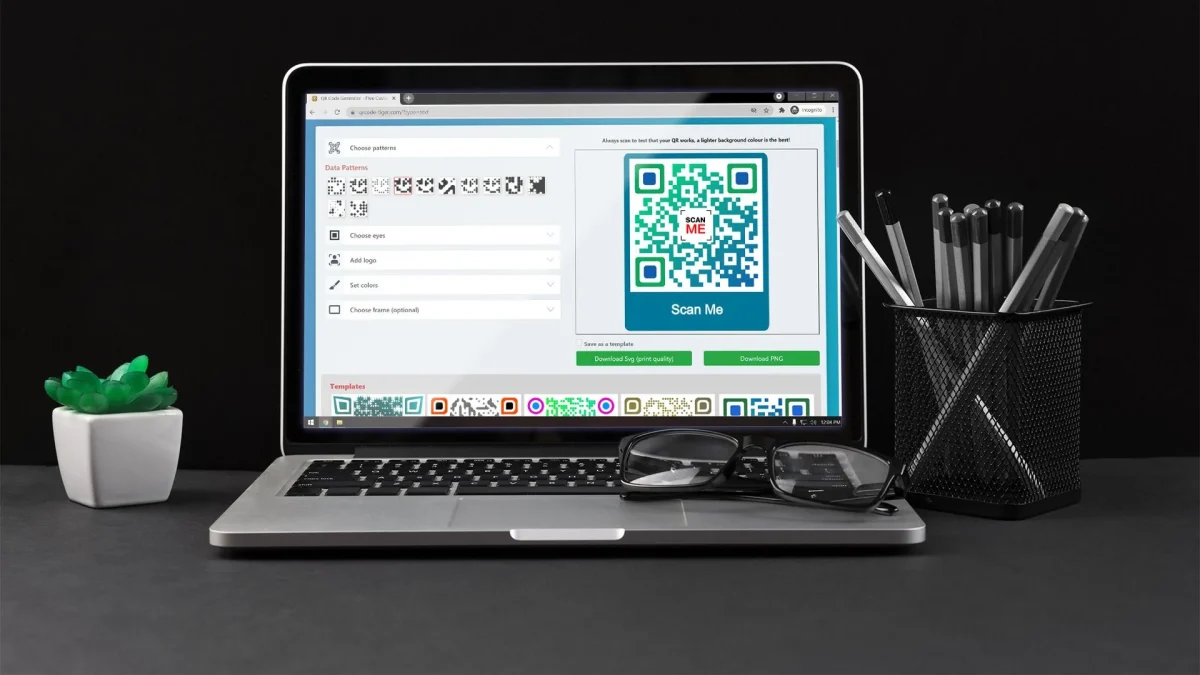
For a code you want to customize with brand colors or a logo in the center, go to qrcode-monkey.com. This tool is free, requires no sign-up, and offers a level of customization normally found on paid services. You can change colors, adjust the pattern style, upload a logo, and download in SVG format.
Step 2: Select URL as the Content Type
Most generators give you a choice of what type of content to encode: URL, plain text, WiFi, phone number, email, and others. Select URL or Website, then paste your complete web address into the field provided.
Include the https:// at the beginning. Some generators add it automatically if you forget, but entering it explicitly is the safer habit.
Step 3: Customize If Needed
If you are using a basic tool like Shopify’s generator, there are no customization options and you can move straight to downloading.
If you are using QRCode Monkey or a similar tool, this is where you make design decisions.
Colors are the most impactful customization. Changing from black-and-white to your brand color can make a QR code feel intentional and on-brand rather than like a utility element. The critical rule is to maintain strong contrast. The dark elements of the code must be significantly darker than the background, or the code will scan unreliably. Test any custom color combination before committing to it.
Logos are the second common customization. Placing your logo in the center of the code looks polished and helps people recognize it as belonging to your brand. Keep the logo small, occupying no more than about 20 percent of the code area. QR codes have built-in error correction that allows a portion of the pattern to be obscured and still scan, but a logo that is too large will exceed that tolerance and cause scanning failures even though the code looks visually complete.
Step 4: Download in the Right Format
This step is more consequential than it might seem.
SVG is the best format for any QR code that will be printed. SVG is a vector format, which means it stores the shapes mathematically rather than as a fixed grid of pixels. The result is that it can be printed at any size, from business card to banner, and remain perfectly sharp. If the generator offers SVG, download in SVG.
PNG at a high resolution is a reliable alternative. Download at the highest resolution the tool offers, at minimum 1000 pixels by 1000 pixels. This will look sharp at most printed sizes.
Avoid JPEG format entirely. JPEG compression introduces subtle visual noise around the sharp edges of a QR code. This noise can interfere with scanning, particularly when the code is printed at smaller sizes or displayed on screens.
Step 5: Test Before You Use It
Do not skip this step. Before the QR code appears on any printed material or gets published anywhere, scan it yourself.
Open your phone camera, point it at the code displayed on your screen, and confirm it opens exactly the right page. Then test it on a second device if you can. Different phones use different camera algorithms and it is worth confirming the code scans reliably across more than one.
If you are printing the code, print one test copy first and scan the printed version. Print quality, ink color, and surface texture can affect how reliably a QR code scans. A code that scans fine on screen may scan poorly when printed with certain printer settings or on certain paper stocks.
Making QR Codes Work Better in the Real World
Generating a correct QR code and having people actually use it are two different things. A few practical considerations help close that gap.
Size directly affects scan reliability. The absolute minimum for comfortable scanning in good conditions is about 2 centimeters by 2 centimeters. For real-world use where conditions vary, 3 to 4 centimeters is a more reliable target. For signage meant to be scanned from across a room, scale proportionally to the viewing distance.
A quiet zone, the clear border of space around the code, is required for reliable scanning. Most generators include this automatically in the downloaded image. If you are placing the code inside a design, make sure there is adequate white space around all four sides. Placing a QR code edge-to-edge with other design elements without that margin will cause scanning problems.
A call to action dramatically increases the number of people who actually scan the code. Scan to visit our website or Scan to see our menu tells someone what will happen when they scan. An unexplained black-and-white square gets ignored. A code with a clear instruction gets used.
The scanning environment matters too. A QR code on a table tent in a dim restaurant needs to be larger and have stronger contrast than one on a brightly lit outdoor poster. Think about where and how people will be scanning before finalizing size and contrast.
Frequently Asked Questions
Do QR codes expire?
Static QR codes never expire. The URL is encoded permanently in the pattern and will continue to work as long as the destination page remains active. Dynamic codes depend on the redirect service remaining operational.
What if I need to change the website the QR code points to?
Static codes cannot be changed. You would need to generate a new code. To avoid this, use a short redirect URL that you control as the QR code destination. You can update where that redirect points without touching the QR code itself.
Can I put a QR code on a coloured background?
Yes, but the contrast between the code and background must be strong. The dark elements must be noticeably darker than the background. Very light or medium-tone backgrounds are fine as long as the contrast is maintained. Always test before committing to print.
What is the best file format to download a QR code in?
SVG for anything that will be printed or used at varying sizes. High-resolution PNG as an alternative. Never JPEG.
Can people scan a QR code without a special app?
Modern smartphones can scan QR codes using their built-in camera app without any additional software. Simply opening the camera and pointing it at the code is enough on virtually all phones made in the last five years.