
What to Do After Clicking a Suspicious Link
The moment you realize you have just clicked a link you should not have, the instinct is to panic. That instant of dread when you recognize the page looks wrong, or when it hits you that the email was suspicious after all, is one of the more uncomfortable feelings in everyday digital life.
The good news is that accidental link clicks are not automatically catastrophic. How serious the situation actually is depends on what happened after you clicked and what you do in the next few minutes. Most people who click a suspicious link and immediately close it without interacting with anything end up with nothing worse than a brief scare.
This guide walks through exactly what to do, in the right order, based on what actually happened.
First: Understand What Actually Happened
Your response should match the level of risk, so before doing anything else take five seconds to assess what occurred.
There is a significant difference between the following situations, and they call for different levels of urgency.
The lowest-risk outcome is clicking a link that opened a page you immediately recognized as wrong and closed without interacting with anything. On a modern, updated device with a standard browser, simply viewing a page is very unlikely to cause harm. You may have sent a signal to the attacker that your link was active, which is a minor issue. You probably did not get malware installed.
A moderate-risk outcome is clicking a link that opened a page you looked at for a while, perhaps filled in some information like an email address, or downloaded something but did not open it. The downloaded file carries risk if opened. The email address is a minor issue. A malware scan is warranted.
A high-risk outcome is clicking a link, landing on a page, and entering a username and password. Your credentials for whatever service that page was impersonating may now be in someone else’s hands. Act quickly on the password steps below.
The highest-risk outcome is clicking a link, downloading a file from the resulting page, and opening it. Executed malware can install tracking software, ransomware, or remote access tools. This requires thorough scanning and potentially more significant steps.
Step 1: Do Not Enter Anything
If the page that opened is still in front of you, do not type anything into it. Not your name, not an email address, not a password, not a card number, not a phone number. Nothing.
If there is a login form, a pop-up asking for your details, or a prompt to download something, close the tab without interacting with any of it. Use the tab close button, not any button on the page itself.
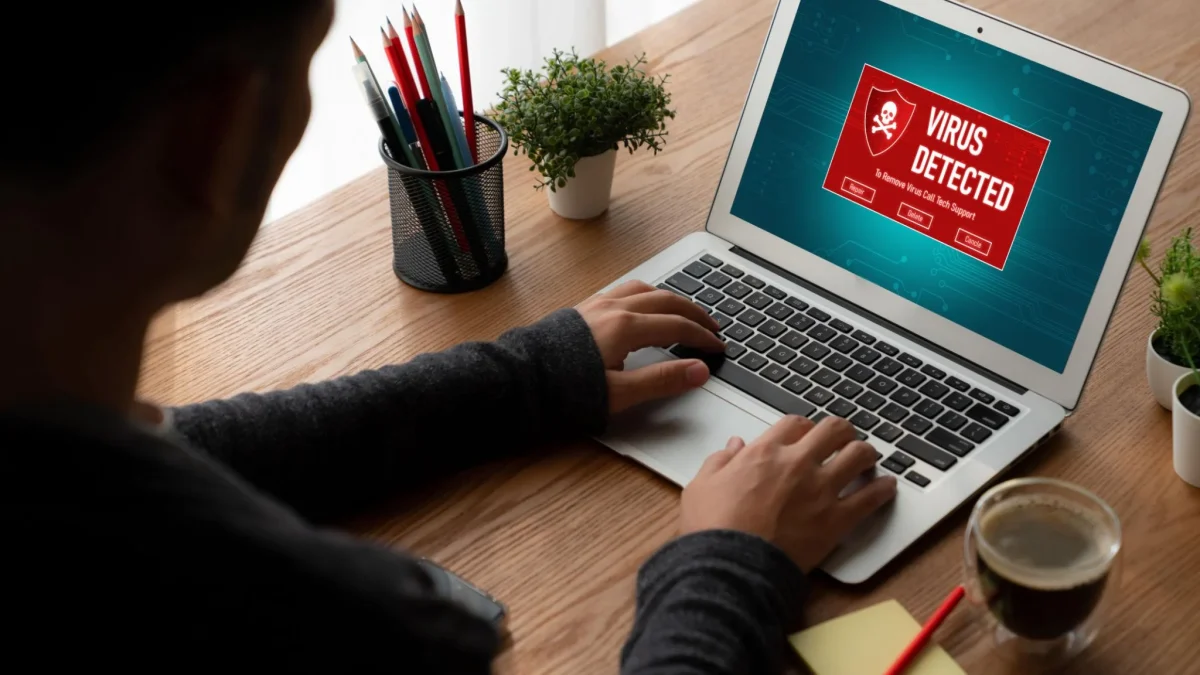
If the page has opened a pop-up that claims your device is infected and tells you to call a number or install a security program, this is a scareware tactic. It is designed to alarm you into calling a fake technical support line or installing actual malware. Close the browser window. If the pop-up prevents you from closing normally, force-close the browser through your device’s task manager or by swiping it away in your phone’s app switcher.
Step 2: Run a Malware Scan
Run a scan on your device before doing anything else that touches the internet.
On Windows, the built-in Microsoft Defender antivirus is capable and free. Open Windows Security from the Start menu, navigate to Virus and Threat Protection, and run a Full Scan. If you want a second opinion from a different engine, Malwarebytes offers a free version that is particularly good at finding threats that standard antivirus tools sometimes miss. Download it from malwarebytes.com, run a scan, and remove anything it finds.
On Mac, macOS has built-in protections called XProtect and Gatekeeper that handle most common threats automatically. For additional scanning, Malwarebytes for Mac offers a free version that checks for malware and potentially unwanted programs.
On a phone, both Android and iPhone have security architectures that make malware installation through a browser click difficult under normal circumstances. However, if you downloaded and opened a file, or if you granted an unusual permission request, a scan from a reputable security app is worthwhile. Download only from the official Google Play Store or Apple App Store.
If the scan finds something, follow the software’s removal instructions. If it finds nothing, that is genuinely reassuring. Most accidental link clicks on current devices result in nothing being installed.
Step 3: Change Your Passwords If You Entered Any
If you typed a username and password into the page that opened after clicking the link, assume those credentials are now known to someone else. The right response is immediate password changes.
Start with your email account. This matters most because your email is the recovery mechanism for almost every other account you have. If an attacker gains access to your email, they can request password resets for your bank, social media, shopping accounts, and everything else. Securing your email first limits the damage.
Then change the password for whichever account the suspicious page was impersonating. If it was designed to look like a Netflix login page, change your Netflix password. If it mimicked your bank, change your bank login.
After that, consider every other service where you use the same password or the same username and password combination. Password reuse is how one stolen credential leads to multiple account takeovers. If you use the same email and password on five different sites, all five are now potentially compromised.
While you are changing passwords, enable two-factor authentication on your email account if you have not already. Even if an attacker now has your password, they cannot complete a login without the second factor. This one step makes a stolen password significantly less useful to anyone who might have it.
Step 4: Check for Signs of Unauthorized Access
After securing your passwords, look through your accounts for evidence that any of them were accessed without your knowledge.
In your email, check the Sent folder for messages you did not write. If your email was accessed, the first thing many attackers do is use it to send phishing messages to your contacts. Look at the sign-in history if your provider shows it. Gmail shows recent account activity at the bottom of the inbox with a Details link. Look for logins from devices or locations you do not recognize.
For financial accounts, review your recent transaction history for anything you did not authorize. Contact your bank immediately if you see unauthorized charges. Card issuers take fraud reports seriously and can initiate chargebacks on fraudulent transactions.
For social media, check whether any posts were made without your knowledge and whether your profile details or linked accounts have been changed.
Step 5: Check the Link Itself
If the original suspicious link is still accessible to you in the message where you received it, you can check it against security databases to understand what it was.
Google’s Safe Browsing tool at transparencyreport.google.com/safe-browsing/search lets you enter a URL and see whether Google has flagged it as dangerous. A result showing that the site is known for phishing or malware confirms your suspicion but also tells you the attackers’ infrastructure is well enough known to have been reported.
VirusTotal at virustotal.com scans a URL against dozens of security engines simultaneously. Multiple detections confirm malicious intent. Zero detections on a newly created site do not guarantee it is safe, as new threats take time to be catalogued.
When to Escalate Your Response
For most accidental link clicks, the steps above are sufficient. There are situations that warrant going further.
If you entered payment card information on a suspicious page, call your card issuer immediately and report potential fraud. Ask them to monitor your account for unusual activity or issue a replacement card proactively. Do not wait for an unauthorized charge to appear.
If you downloaded and opened a file, and particularly if your device is now behaving unusually, such as running slowly, showing unexpected pop-ups, or displaying unfamiliar programs, the scan above may not be sufficient. Consider consulting a professional or, in serious cases, resetting the device to a clean state.
If the incident happened on a work device, your employer’s IT or security team needs to know. Organizations have security protocols for suspected incidents and a potential breach that is unreported can spread. Telling your IT team promptly is always the right move even if it is uncomfortable.
If you shared identity documents or national identity numbers on a suspicious page, consider placing a fraud alert with the major credit bureaus in your country. In the UK, contact the fraud prevention service Cifas. In the US, a fraud alert can be placed through any of the three major credit bureaus and requires creditors to verify your identity before opening new accounts in your name.
How to Reduce the Risk Going Forward
The most effective habit is a single second of pause before clicking any link in any message. Ask: was I expecting this? Does this request make sense from this sender? Hovering over a link on a desktop computer shows the actual destination URL before you click it. Check it.
If you receive an email from your bank, a delivery company, or any service you use that contains an urgent request to log in or verify your details, do not use the link in the email. Open a new browser window and navigate to the website by typing the address directly. If there is a genuine issue with your account, you will see it when you log in normally.
Enable two-factor authentication on every account that offers it, starting with email, banking, and any account tied to payments. It is the single most effective protection against credential theft because a stolen password alone is not enough to log in.
Frequently Asked Questions
Can you get a virus just from clicking a link without downloading anything?
On a modern, updated device with a standard browser, simply viewing a web page is very unlikely to cause harm. Malware-through-browsing attacks generally exploit unpatched vulnerabilities in outdated software. Keeping your device and browser updated closes most of these doors.
What if the page that opened was blank or immediately showed an error?
A blank or error page usually means the link destination no longer exists or was temporarily unavailable. If you entered no information, the risk is very low. Running a quick scan as a precaution is reasonable but not urgent.
How do I tell if my device has been infected?
Signs to watch for include unusual slowness, pop-ups from software you did not install, browser settings that changed without your input, unfamiliar programs appearing, and unexpected outgoing network activity. A malware scan from a reputable tool is the most reliable way to confirm or rule out infection.
Should I warn my contacts?
If there is any chance your email or social media account was accessed, yes. Attackers frequently use compromised accounts to send phishing messages to the victim’s contact list. A brief message warning people to disregard any unusual links that may have come from your account is a considerate and practical precaution.
How do I check if my email has appeared in a data breach?
Go to haveibeenpwned.com and enter your email address. This free service aggregates data from known breaches and will tell you whether your address appears in any of them. If it does, change the password for the affected service and any others where you used the same credentials.